How to use Convert with Convertelier from Photos
Start with a photo you already have open. Convertelier’s share-sheet action lets you make a converted copy without importing it through the main app. This example turns one photo into a PDF.
Start in Photos
Install Convertelier first. You can then use its action from apps that share a supported file. This walkthrough starts in Apple’s Photos app and uses one photo.
Open your photo and tap Share
In Photos, open a photo and tap the Share button: the square with an arrow pointing up. Scroll down the share sheet to find its actions.
Choose Convert with Convertelier
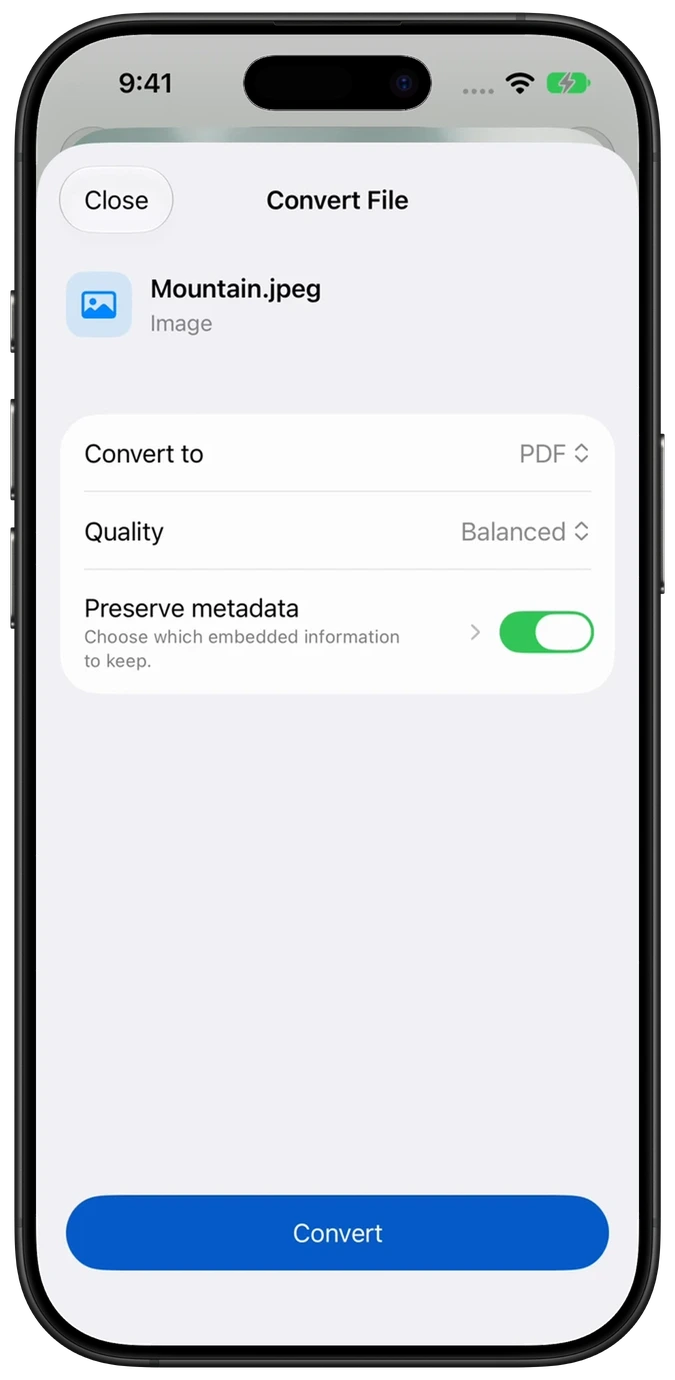
Tap Convert with Convertelier. Its Convert File sheet opens over Photos. If the action is missing, tap Edit Actions at the bottom of the share sheet and enable it if available. A supported file and an installed Convertelier app are required.
Choose PDF and convert
Tap Convert to, choose PDF, then tap Convert. You can choose another available output instead. Format choices depend on what the source app shares; Photos may supply a JPEG copy of a HEIC photo.
Preview, then save your copy
When Conversion Complete appears, tap Preview to check the PDF, then Done to return. Tap Share Converted File, scroll down if needed, and choose Save to Files. Choose a location and tap Save. This creates a separate PDF; your photo stays in Photos.
Watch the Photos walkthrough
Follow the numbered steps from Photos through saving the PDF. This edited Simulator recording uses an original generated sample. Sequences are shortened; the conversion controls and results are real.
Common questions
Do I have to open Convertelier first?
Install the app first. The share action then opens the conversion sheet from the other app, so you do not need to import the file through Convertelier’s main screen.
Why don’t I see Convert with Convertelier?
Scroll down the share sheet and check Edit Actions. Confirm Convertelier is installed, share just one file, and use a supported file type. Other apps may share a link or text instead of the original file, so availability can differ.
Can I save a PDF back into Photos?
Photos stores images and videos. Use Save to Files for a PDF. Available share destinations depend on the converted format and the apps installed on your device.
Does my original photo change?
No. Convertelier creates a separate output. The completed conversion also appears in Convertelier’s local history for 24 hours.
Try it with your own photo
Every conversion feature is free. No account or subscription is required. Optional tips support development.
More tutorials