How to convert HEIC to JPEG on iPhone
Make an iPhone photo easier to share with a website, application form, or another device. Convertelier creates a separate JPEG on your iPhone or iPad, so your original stays intact.
When this is useful
HEIC is efficient for storing photos, but some websites and older software ask for JPG or JPEG. JPG and JPEG are two names for the same image format.
Choose your photo
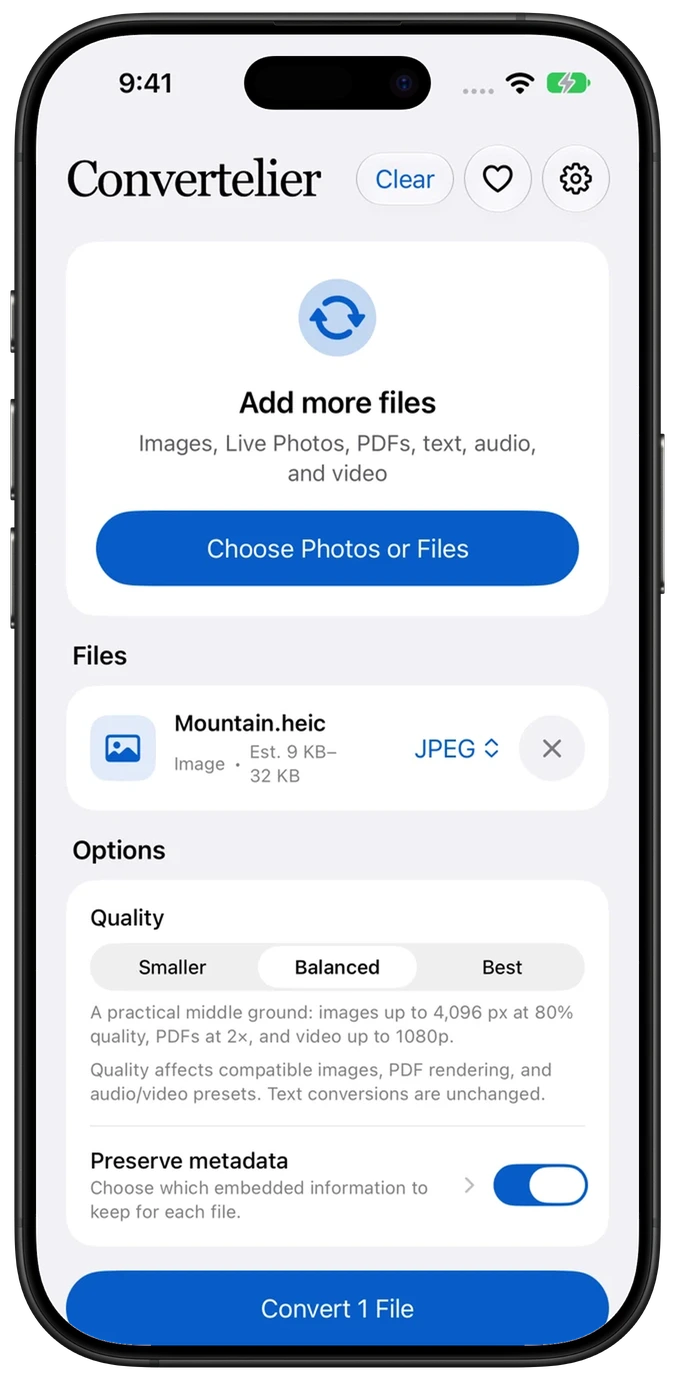
Open Convertelier, tap Choose Photos or Files, then Photo Library. Select your HEIC photo and confirm the selection. If the photo is in Files, choose Files instead.
Set the output to JPEG
Tap the output format beside the imported file and choose JPEG. Choose Balanced for everyday use, Smaller to reduce dimensions and lossy quality, or Best to prioritize detail within the app’s limits.
Convert, then save a copy
Tap Convert 1 File. Use the share sheet to save or send the JPEG. If you close that sheet, use Preview Converted Files or Share Converted Files to reopen the result.
Watch the walkthrough
Follow the numbered steps in the video. Highlights point out the controls to use. This edited iOS Simulator recording uses a generated sample; the written steps above also cover importing your file.
Common questions
Does this replace the original HEIC photo?
No. Convertelier makes a separate output file. Your original photo remains intact.
Is a JPG different from a JPEG?
No. Both extensions refer to the JPEG image format.
Can I convert several photos?
Yes. Import up to 25 supported files in one batch and choose an output for each file.
Try it with your own file
Every conversion feature is free. No account or subscription is required. Optional tips support development.
More tutorials