How to extract MP3 audio from a video on iPhone
Keep the sound from a video as a separate MP3 file. Use it for a recording you own, a practice clip, or another video you have permission to convert.
When this is useful
MP3 is widely supported by audio players. It contains audio only, so the exported MP3 will not include the video’s picture.
Choose the video
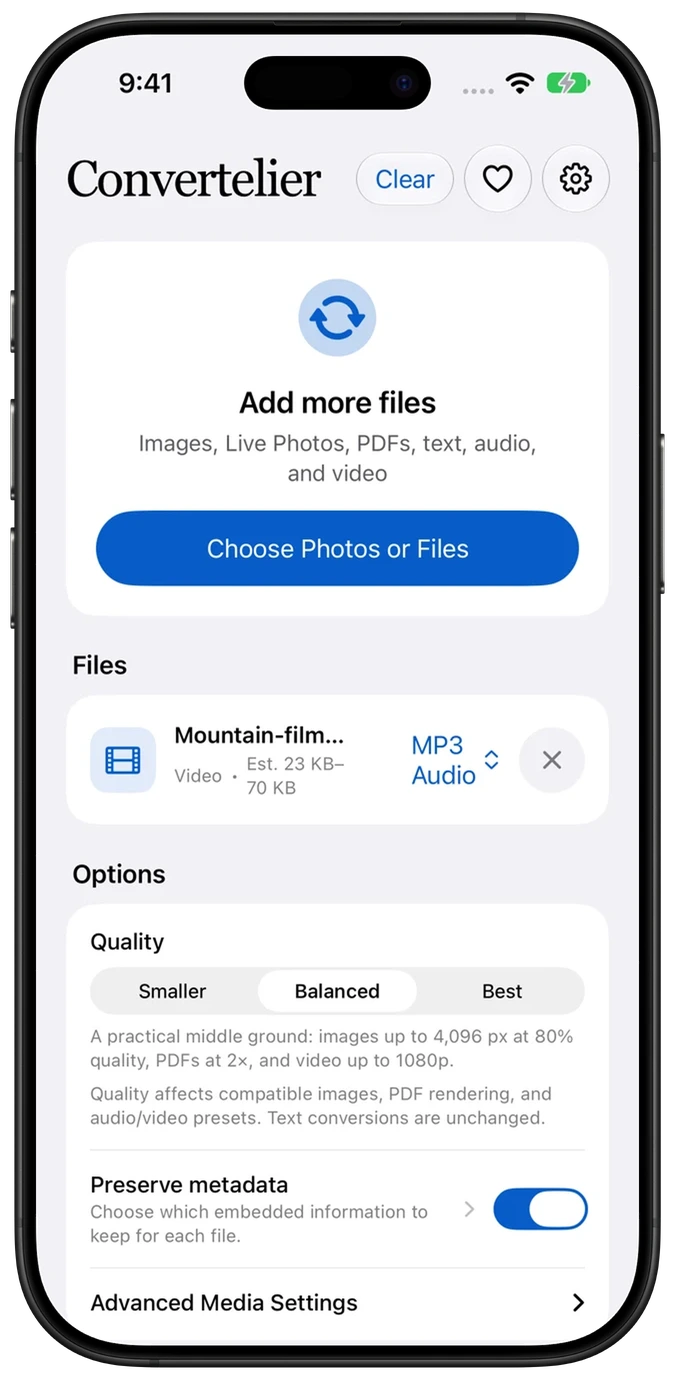
Open Convertelier, tap Choose Photos or Files, and select your video from Photo Library or Files. Confirm the selection and wait for the file to finish importing.
Select MP3
Open the output-format menu beside the video and choose MP3. Choose a quality preset. If needed, expand Advanced Media Settings to adjust the compatible audio controls.
Extract and save the audio
Tap Convert 1 File. Save the MP3 through the share sheet, or send it to an audio app. Your original video remains intact.
Watch the walkthrough
Follow the numbered steps in the video. Highlights point out the controls to use. This edited iOS Simulator recording uses a generated sample; the written steps above also cover importing your file.
Common questions
Will converting delete the video?
No. The MP3 is a separate file, and your original video remains intact.
Why is there no audio to extract?
A silent video may not have an audio track. The source also needs to be readable by the device’s media frameworks.
Can I choose another audio format?
Compatible inputs can also export M4A, WAV, AIFF, and FLAC. Choose a format supported by the app where you plan to use it.
Try it with your own file
Every conversion feature is free. No account or subscription is required. Optional tips support development.
More tutorials